A student's guide
Citing and Referencing
How to show where your ideas come from: citations and references, writing with sources, and the tools that make it easier, from Google Scholar to EndNote, Word and Crossref.
Whenever you use someone else's words, ideas or findings, say where they came from: briefly in your sentence, and in full in your reference list.
1
Citations and References
Referencing has two parts that work together:
In your sentence
The citation
A short pointer in your text, usually the author's surname and the year, that shows which source an idea came from.
Example Reviews should be organised around concepts (Webster & Watson, 2002).
At the end
The reference
The full details of the source, in your reference list, so that a reader can find it. Every citation needs a reference, and every reference needs at least one citation.
Example Webster, J., & Watson, R. T. (2002). Analyzing the past to prepare for the future: Writing a literature review. MIS Quarterly, 26(2), xiii–xxiii. https://doi.org/10.2307/4132319
Which style?
A referencing style sets the exact format. APA and Harvard are two styles widely used in business schools. Your course outline or supervisor will say which one to use. Here is the same article in both:
| Part | APA (7th edition) | Harvard |
|---|---|---|
| Citation | (Webster & Watson, 2002) | (Webster & Watson 2002) |
| Reference | Webster, J., & Watson, R. T. (2002). Analyzing the past to prepare for the future: Writing a literature review. MIS Quarterly, 26(2), xiii–xxiii. https://doi.org/10.2307/4132319 | Webster, J & Watson, RT 2002, 'Analyzing the past to prepare for the future: writing a literature review', MIS Quarterly, vol. 26, no. 2, pp. xiii–xxiii, DOI:10.2307/4132319. |
Small details matter in each style: punctuation, capital letters, italics and the order of the parts, and Harvard comes in several versions. Follow your own university's guide. The examples above follow UNSW's guides to APA referencing and Harvard referencing.
Quoting, paraphrasing and summarising
- Quoting copies the author's exact words, in quotation marks, with the page number. Use it sparingly, for wording that matters.
- Paraphrasing puts one idea into your own words and sentence structure. It still needs a citation.
- Summarising gives the main points of a longer piece in a few sentences of your own. It also needs a citation.
Using someone's ideas without a citation is plagiarism, even if you have changed every word. Your university's referencing guide will explain what does and does not need a reference (for example, UNSW's guide to referencing).
2
Writing with Sources: Author-centric or Concept-centric
Webster and Watson (2002), in a widely used guide to writing literature reviews, contrast two ways of writing about earlier research:
Author-centric: one source after another
"Lee (2019) studied audit quality in large firms and found that experience mattered. Chan (2021) examined audit quality in banks. Patel (2022) looked at audit fees and found they were higher for complex clients."
Fictional teaching example: these are not real studies or findings.
Concept-centric: one idea at a time
"Auditor experience is consistently linked to higher audit quality (Lee, 2019; Chan, 2021), although this evidence comes mostly from large firms and banks. Client complexity appears to raise both audit effort and fees (Patel, 2022), which suggests that quality and cost may be connected."
Fictional teaching example: these are not real studies or findings.
The author-centric version reads like a list of summaries: the reader has to work out what the studies mean together. The concept-centric version is organised around ideas (experience, complexity, cost), groups the studies that speak to each idea, and says what they show together, including where the evidence is thin. Webster and Watson argue that a good review is concept-centric: concepts, not authors, give it its structure.
Two ways to place a citation
- Author in the sentence: "Webster and Watson (2002) argue that…". Use this when the author or their argument is the point.
- Author in brackets: "Reviews are stronger when organised around concepts (Webster & Watson, 2002)." Use this when the idea is the point. It suits concept-centric writing, and lets you group several sources: (Lee, 2019; Chan, 2021).
Tip Read your paragraph's first sentences. If most begin with an author's name, your writing is probably author-centric. Start with the idea instead.
Activity · Try it
Rewrite this author-centric paragraph so that it is organised around ideas:
"Ng (2018) found that firms publishing sustainability reports had a lower cost of capital. Ward (2020) studied sustainability reporting in mining companies. Ahmed (2022) found that investors trusted sustainability reports more when they were independently checked."
Fictional teaching example: these are not real studies or findings.
Show one way to rewrite it
"Sustainability reporting appears to bring financial benefits, such as a lower cost of capital (Ng, 2018), but its value depends on credibility: investors trust reports more when they are independently checked (Ahmed, 2022). Much of this evidence comes from particular industries, such as mining (Ward, 2020), so it may not apply to every firm."
The literature reviews guide shows how to organise studies by concept with a concept matrix, and the difference between describing and synthesising.
3
Google Scholar: Results, Citations and Add-ons
Under every result in Google Scholar is a row of links. Here is a real result, Webster and Watson (2002), with each link numbered and explained below.

- Save (the star) keeps the paper in My library, your own list in Google Scholar, so you can find it again. You need to be signed in with a Google account.
- Cite (the quotation marks) shows the reference ready-made in several styles, including APA and Harvard. Links at the bottom save it for a reference manager: EndNote, BibTeX, RefMan and RefWorks.
- Cited by 17322: Google Scholar has found 17,322 later works that cite this paper. Click it to see them (more below). This is forward citation searching: a quick way to find newer research that builds on a key paper. The paper's own reference list does the opposite: it takes you back to earlier work. Scopus and Web of Science count citations too, usually fewer, because they count only the publications they include.
- Related articles lists papers that Google Scholar finds similar to this one: a quick way to widen your reading.
- All 18 versions lists every copy of this paper that Google Scholar has found: the publisher's page, university repositories and early drafts (preprints). If one copy is behind a paywall, another may be free to read. Cite the published version.
- [PDF] umn.edu, on the right, opens a full text that Google Scholar found online, here on the journal's own website. If you set up library links, a link to your library's copy can appear here too.
Some results also show newer, AI-powered links, such as Quick read (marked ✦). Use them to decide whether a paper is worth reading, never instead of reading it.
Google Scholar's ready-made references (number 2) are often wrong: missing issue numbers or pages, the wrong capital letters, or the details of a preprint instead of the published article. Always check them against the article itself.
Search within the papers that cite it
Clicking Cited by opens the list of papers that cite your starting paper. You can then search, filter and sort just that list.
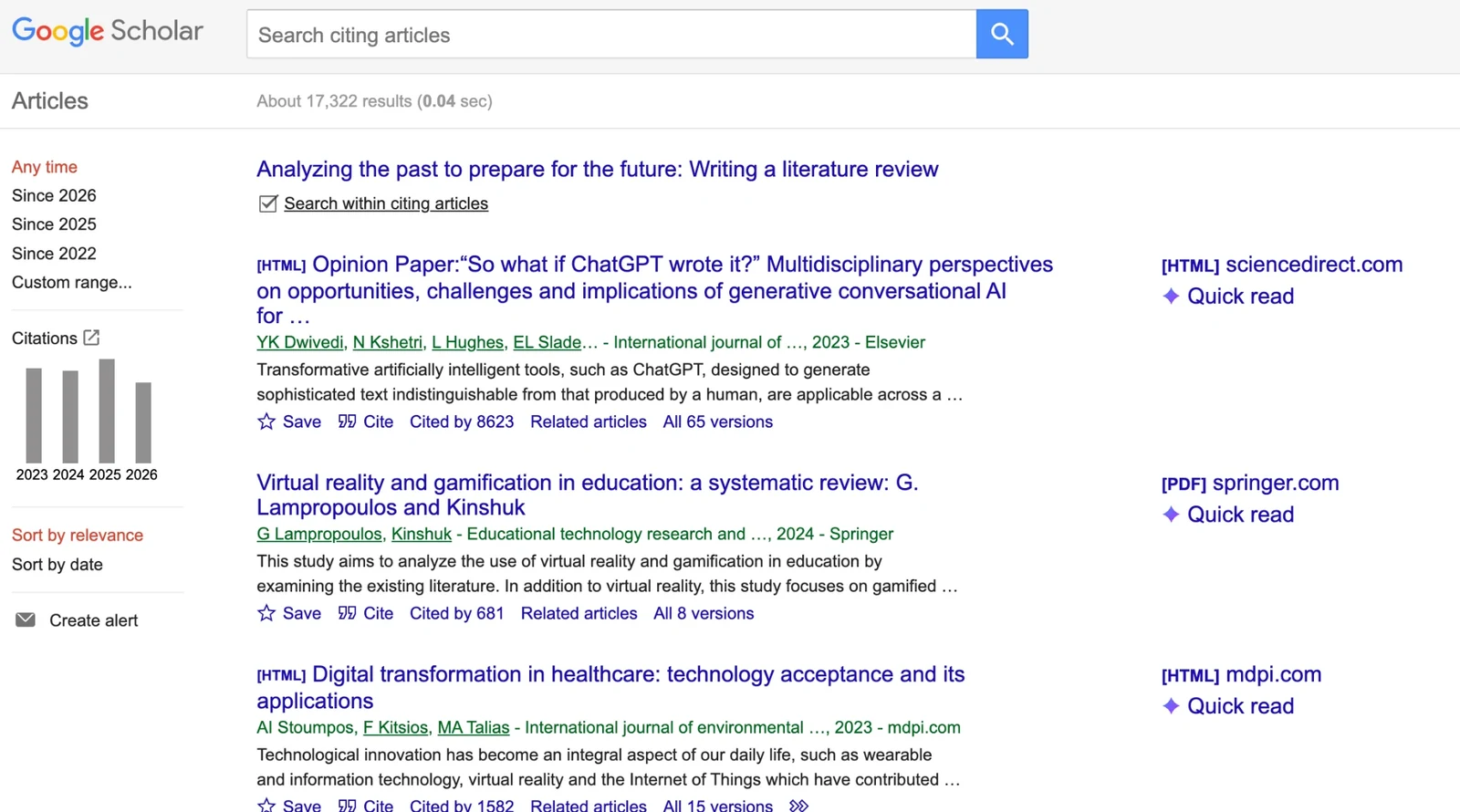
- Make sure Search within citing articles is ticked…
- …then type words in the search box. Google Scholar now searches only the papers that cite your starting paper. For example,
"artificial intelligence"finds work on AI that builds on Webster and Watson. - Since 2026, Since 2025, Since 2022 and Custom range show only recent papers, or the years you choose.
- Sort by date puts the newest papers first, instead of the most relevant.
- Create alert emails you whenever a new paper cites your starting paper: an easy way to keep up to date.
Settings: library links and two browser add-ons
Open Google Scholar's menu (the three lines, ☰, at the top left) and choose Settings. Two parts of it are worth a visit.
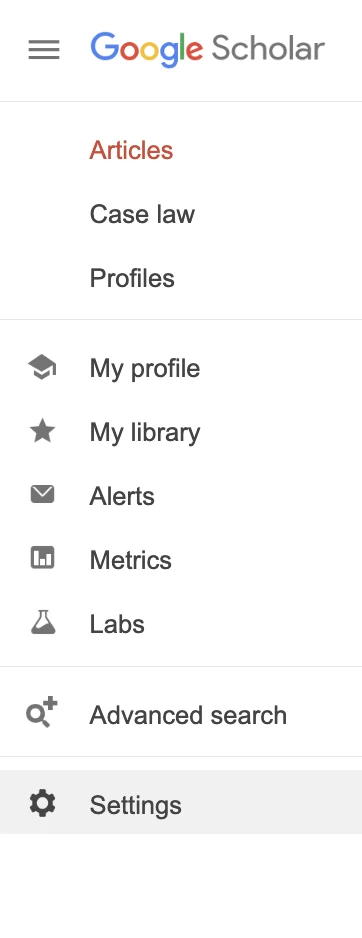
- Library links: search for your university, tick it and click Save. Results that your university subscribes to then show a link to the full text through its library, on the right of the result.
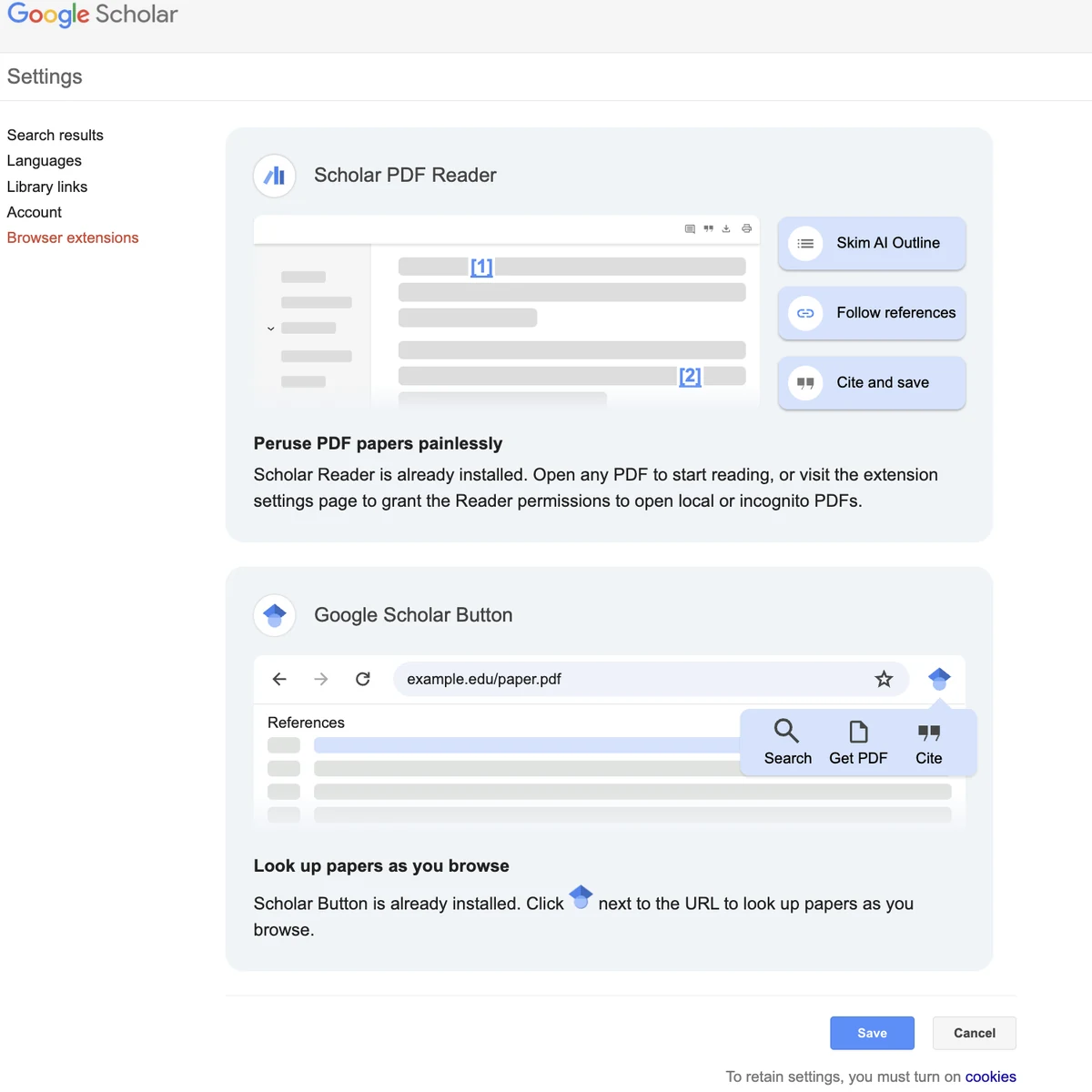
- Browser extensions: two free add-ons for your web browser, made by Google Scholar. This page describes them.
- Scholar PDF Reader opens research PDFs in your browser with extra help: a clickable outline of the paper, written by AI (Skim AI Outline); in-text citations you can click to see the paper they refer to (Follow references); and quick citing and saving (Cite and save). It is made for the Chrome browser.
- Google Scholar Button adds a button next to your browser's address bar. On any web page, click it to look up the paper you are reading, or a title you have selected, in Google Scholar, find a PDF, or get the reference (Search, Get PDF, Cite).
An AI outline is a reading aid: it can miss or misstate things. Read the paper itself before you rely on it.
4
Reference Managers: EndNote and Word
A reference manager keeps all your references (and their PDFs) in one library, and works inside Microsoft Word to insert citations and build your reference list in the style you choose. If you change the style, every citation and reference changes with it.
Many universities give their students and staff EndNote for free: check your university's IT or library website. Zotero is a free alternative that works in a similar way. Your library will have a guide to using them (for example, UNSW Library's guide to managing references).
New to EndNote? Watch it in three minutes
EndNote's own training channel has a three-minute introduction to EndNote 2025, one for Windows and one for Mac.
The videos come from YouTube. Nothing is loaded from YouTube until you press Play; YouTube (Google) then receives your visit, under its own privacy policy.
For more, EndNote's EndNote 2025 playlist has a series of short videos on its latest features, including Key Takeaway, its new AI feature, and on managing your research, citing your sources and creating reference lists.
1. Get references into EndNote
- Scopus: tick the results you want, click Export and choose RIS. Open the downloaded file and EndNote adds the references.
- Web of Science: tick the results, click Export and choose EndNote desktop.
- Google Scholar: click Cite, then EndNote, and open the downloaded file.
- A PDF you already have: EndNote can often read the details from the PDF; check them.
2. Cite while you write in Word
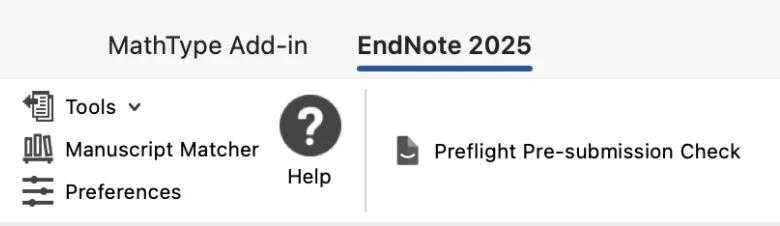
Installing EndNote adds an EndNote tab to Word (EndNote calls this Cite While You Write). These pictures show EndNote 2025 in Word on a Mac. On Windows the tab looks a little different, but the buttons do the same things.

- Insert Citation searches your EndNote library, so you can put a citation into your text (more below).
- Edit & Manage Citation(s) changes a citation already in your text: add a page number (needed for a quotation), leave out the author or year, or remove the citation. Click the citation first. To remove one, use this rather than deleting it by hand.
- Edit Library Reference(s) opens the reference itself in EndNote, so you can correct its details. Always fix mistakes there, not by typing in your document's reference list: EndNote rewrites the list each time it updates, and your typing is lost.
- Style sets the referencing style, here APA 7th (more below).
- Update Citations and Bibliography brings every citation and the reference list up to date, for example after you correct a reference in EndNote.
- Instant Formatting is usually on. When it is off, as here, new citations appear as temporary citations in curly brackets, such as {El Saddik, 2025 #15}, until you click Update Citations and Bibliography. Don't change the text inside the brackets.
- Tools includes Convert to Plain Text, for when you send your work off (more below).
- Preflight Pre-submission Check starts a check of your document by Paperpal Preflight, a separate service (more below).
Insert a citation
Put the cursor where the citation should go and click Insert Citation. This window opens.
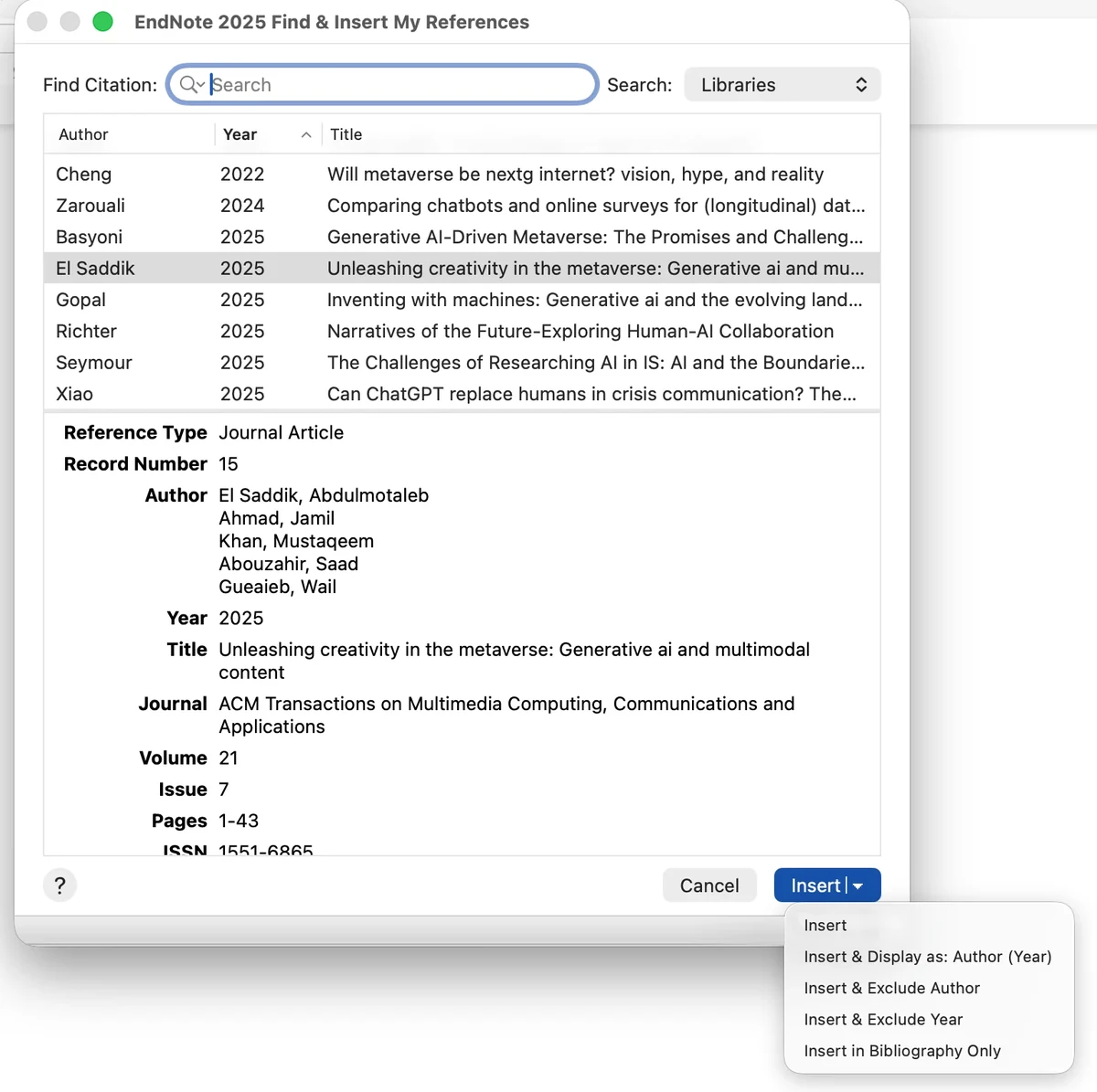
- In Find Citation, type an author's surname, a word from the title or a year.
- Click the reference you want. Its details appear underneath: check that it is the right one.
- Click Insert. EndNote adds the citation to your sentence, and the full reference to the list at the end of your document.
- The small arrow beside Insert offers other ways to insert it. The table below shows what each one puts in your text.
| Choice | In your text (APA 7th) | Use it when |
|---|---|---|
| Insert | (El Saddik et al., 2025) | The idea is the point: the author goes in brackets. |
| Insert & Display as: Author (Year) | El Saddik et al. (2025) | The author is the point: "El Saddik et al. (2025) argue that…" (see Writing with Sources). |
| Insert & Exclude Author | (2025) | Your sentence already names the authors in your own words. |
| Insert & Exclude Year | (El Saddik et al.) | Rarely: your sentence already gives the year. |
| Insert in Bibliography Only | Nothing: the reference appears only in the list at the end | Rarely: in most work, every reference must be cited in the text. |
Choose your style
Click the Style menu on the EndNote tab. Every citation and the whole reference list change to the style you choose.
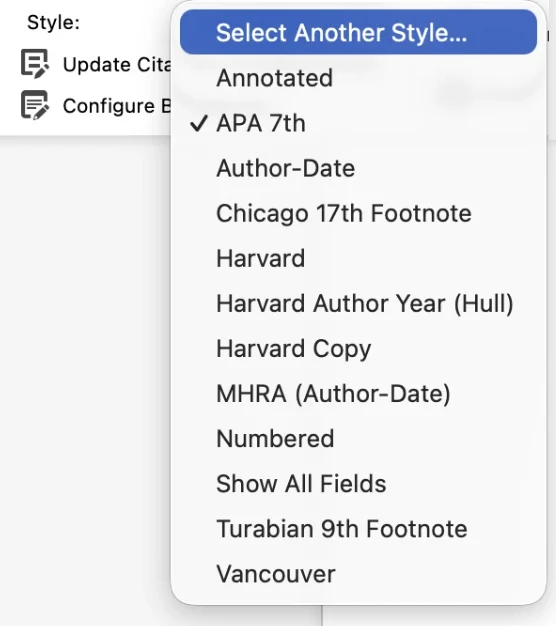
- Select Another Style… opens the full list of styles that come with EndNote, if yours is not in this short menu.
- The tick shows the style in use, here APA 7th.
- EndNote has several versions of Harvard, and none may match your university's version exactly. Your library's EndNote guide will say which one to use, and may offer its own style to download.
Send a copy without EndNote's codes
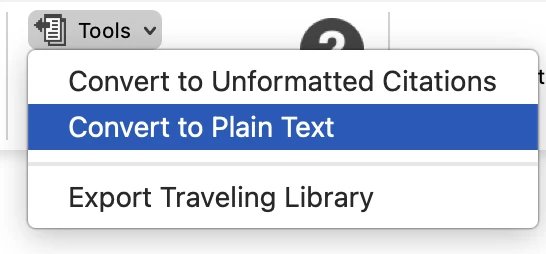
Behind each citation, EndNote keeps hidden codes that link it to your library. Journals often ask for a document without them. On the EndNote tab, click Tools, then Convert to Plain Text (on Windows: Convert Citations and Bibliography, then Convert to Plain Text).
EndNote makes a new copy of your document, with the citations and references as ordinary text, and your original keeps its codes. Save the copy under a new name and send that. Keep working in the original: EndNote can no longer update the copy.
3. Preflight: a check before you submit to a journal
Paperpal Preflight is a separate service, run by Paperpal (a company that makes AI writing tools) in partnership with EndNote. You upload your manuscript, a Word file or PDF of up to 20 MB, from the Preflight Pre-submission Check button on the EndNote tab or from Preflight's website. Its AI then checks the language, and the technical points journals look for, such as references, word limits, figures and tables.
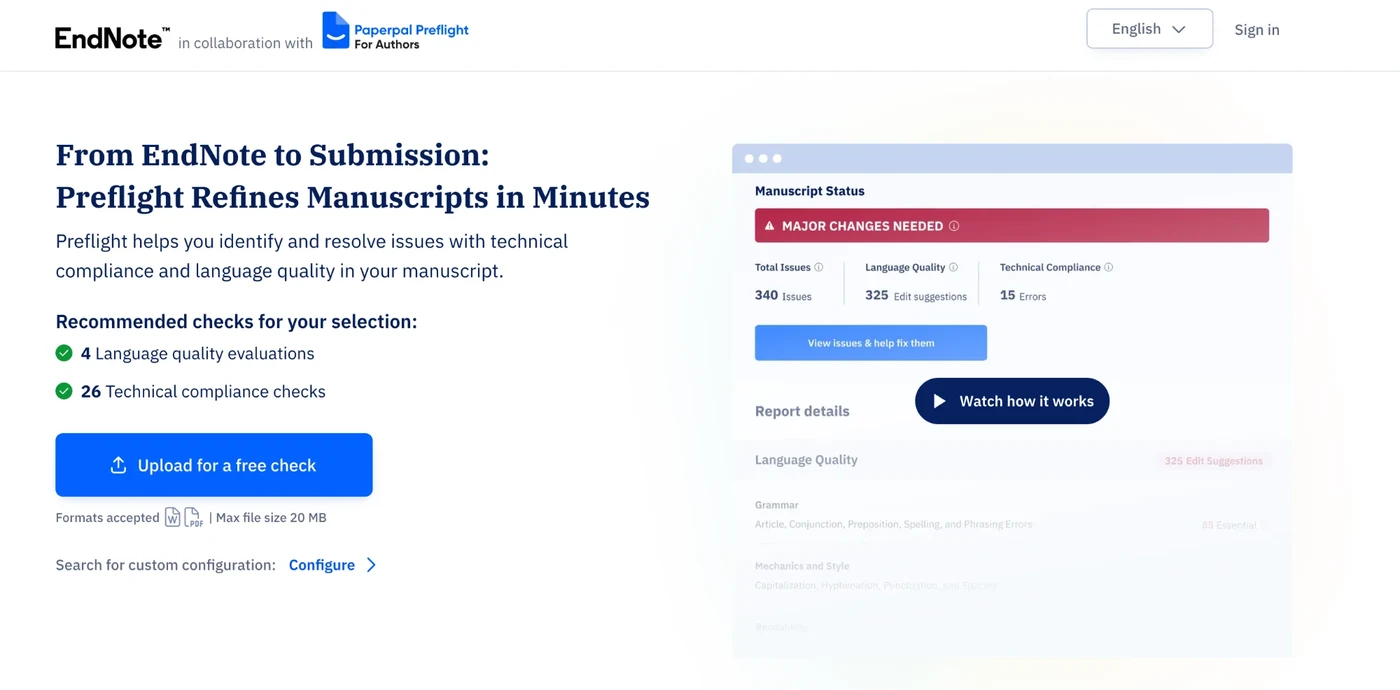
- Upload for a free check: choose your manuscript, a Word file or PDF of up to 20 MB.
- An example of the free report: your manuscript's status, and how many problems it found in language quality and technical compliance.
- Free: the check and its report, which shows how many problems were found and of what kind.
- Paid: an edited copy of your file, with every suggested change tracked, for a one-time fee ($19 on Preflight's page in October 2026), with free rechecks for 30 days.
Preflight is made for authors about to submit a paper to a journal. Uploading your work sends it to an outside company, and AI editing may not be allowed for assessed work or a thesis. Before you upload, check your course's rules on AI and editing help, and agree it with your supervisor and any co-authors. Accept only the changes you understand.
4. EndNote Click: one click to the full text
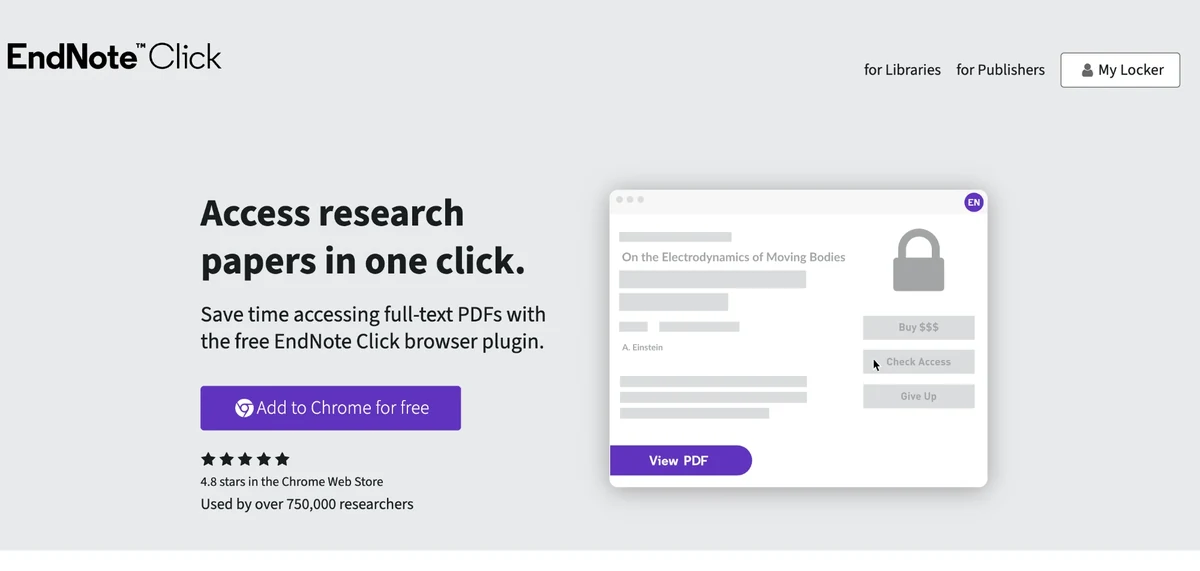
EndNote Click (formerly called Kopernio) is a separate, free add-on for your web browser from Clarivate, the company behind EndNote and Web of Science. On a journal article's page, it looks for a PDF you can read: a free open-access copy, or the publisher's version if your university subscribes.
It works in Chrome, Edge and Opera, and needs its own free account. Despite its name, you don't need EndNote to use it. Your library may also suggest a similar tool.
A reference manager is only as accurate as the details you give it. Check each reference before you submit, especially ones from Google Scholar.
5
Checking References and Finding DOIs
A DOI (digital object identifier) is a permanent code for a publication, such as 10.2307/4132319. Typing https://doi.org/ followed by the DOI into your browser opens the publication. APA style asks for the DOI whenever there is one.
Crossref's Simple Text Query
Simple Text Query is a free tool from Crossref, the organisation that registers most journal DOIs. Paste in your reference list, in any style, and it looks up the DOI of each reference it recognises. Copy your reference list from your document (up to 1,000 references at a time), then open the tool.
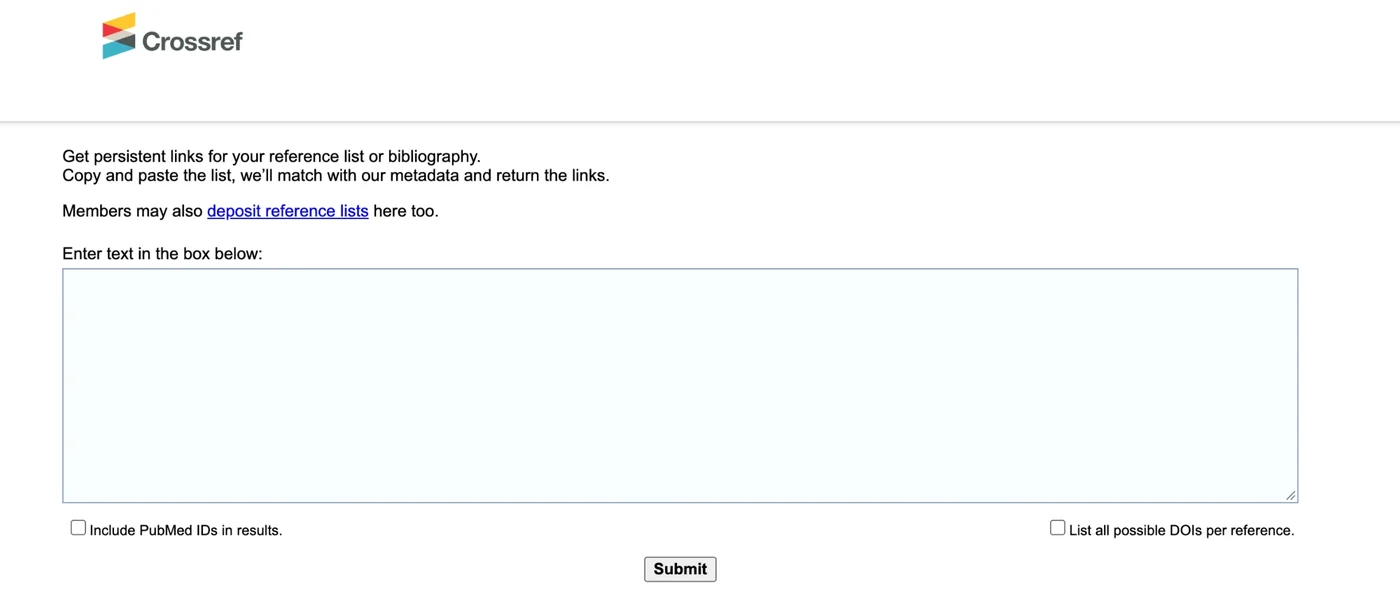
- Paste your reference list into the box.
- Leave List all possible DOIs per reference unticked at first. If a reference comes back with the wrong match, tick it and submit again: Crossref then shows several possible matches, and you choose the right one. You can ignore Include PubMed IDs, which is for medical and health research.
- Click Submit. Crossref returns your list with the DOI it found for each reference. Check each match: open the DOI and make sure it is the publication you meant.
It is also a quick check that your references are real and complete. A reference it cannot match is not necessarily wrong: many books, reports and law journals have no Crossref DOI. Check those by hand.
If you use Claude or ChatGPT, the free Scholar Sidekick add-on can also check references from their DOIs, including whether a cited title matches the real paper and whether the paper has been retracted (see Check Every Reference in the guide to using AI tools).
AI tools can invent references that look real. Never cite a source you have not found and read yourself (see using AI responsibly).
6
Before You Submit
- Every idea, finding and quotation from a source has a citation.
- Every citation has a matching reference, and every reference is cited.
- The references follow one style (APA or Harvard) consistently, as your course asks.
- Quotations have page numbers.
- Paragraphs are organised around ideas, not authors.
- Each reference has been checked against the source, with a DOI where there is one.
For one-to-one help with referencing and writing, ask your university's academic skills or learning centre (for example, UNSW Academic Skills consultations).